
With passkeys, a stolen password no longer grants access to your ISMS.
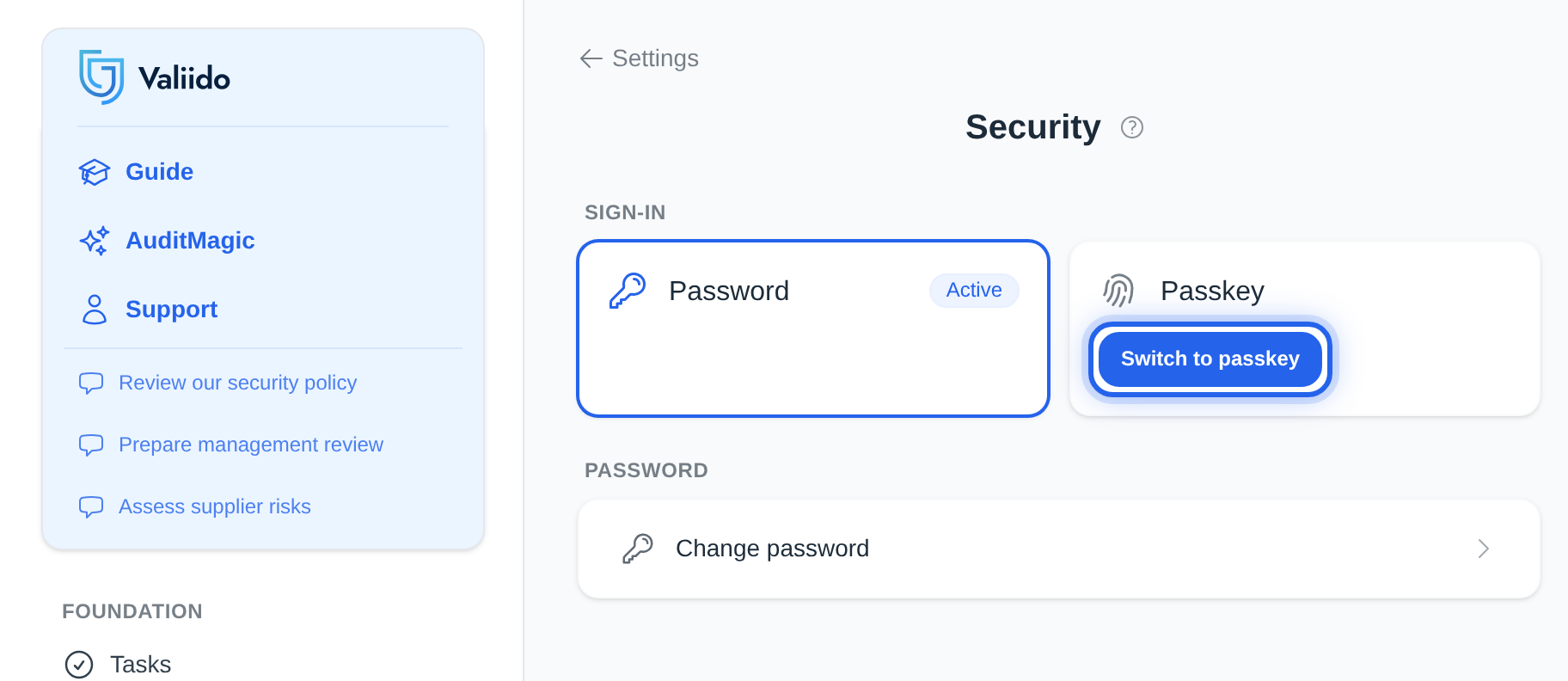
Set up a passkey
- Under Settings → Security, select Switch to passkey.
- Confirm with your password and follow your device’s prompt.
- Name the passkey (for example, “iPhone”) and select Save.
You now sign in only with a passkey. Valiido confirms the change by email. For a second device, select “Add another passkey.”
Sign in with a passkey
- On the sign-in page, select Passkey.
- Confirm with your fingerprint, facial recognition, or PIN.
Entering your password opens the passkey prompt. You’ll no longer receive sign-in links.
Require passkeys for everyone
To require passkeys company-wide, you need your own passkey and admin access.
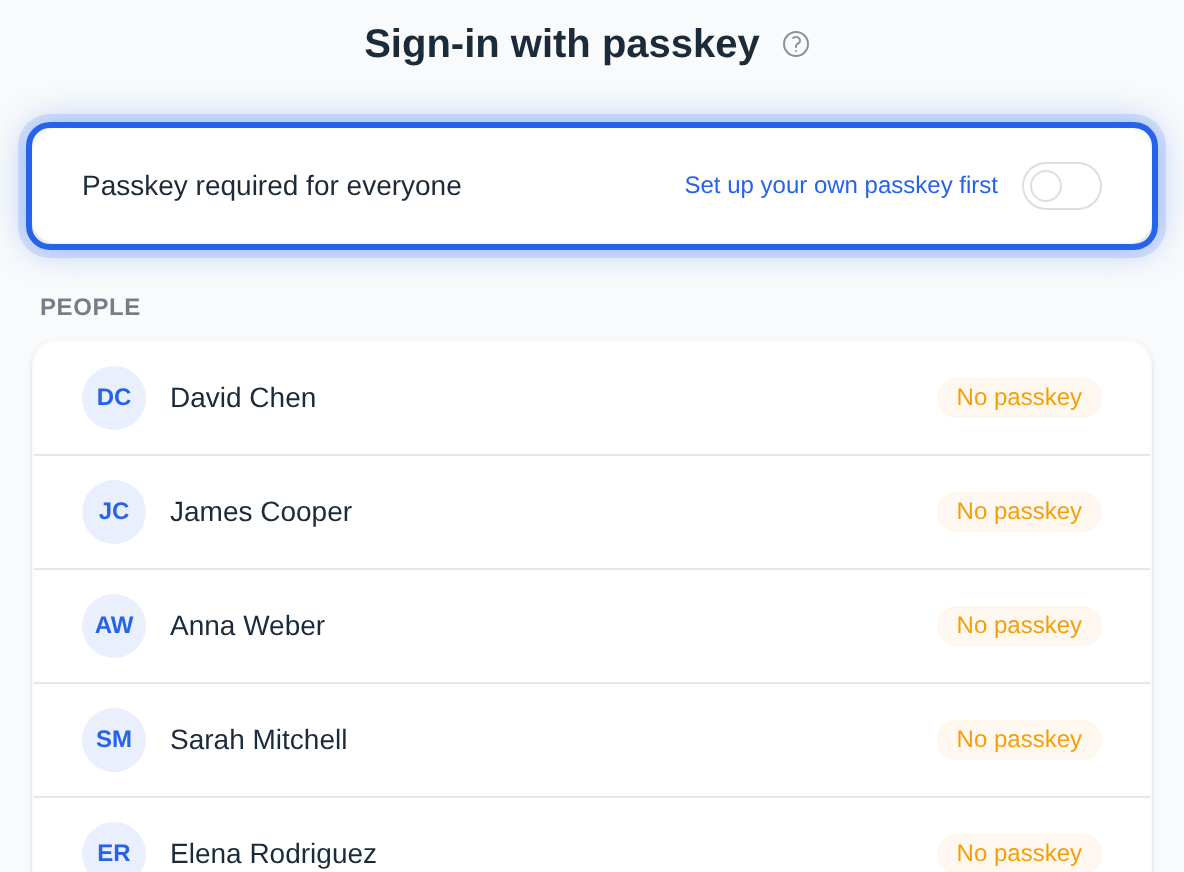
- Under Settings → Administration, select Sign-in with passkey.
- Turn on Passkey required for everyone.
Anyone without a passkey sees only the setup page. Check People for anyone missing a passkey.
Reset passkeys
Admins can help if someone loses a device.
- Open Sign-in with passkey.
- For that person, select Reset passkeys and confirm.
Valiido deletes all their passkeys, signs them out everywhere, and emails them. They can sign in again with a password or sign-in link, then set up a new passkey if required.
Common questions
What happens to open sessions?
Sessions stay open when you set up a passkey or require passkeys. Only a reset signs the person out everywhere.
How do I remove a lost passkey?
If you have a second passkey, select “Remove” beside the lost one under Security. Otherwise, ask an admin to reset your passkeys.
How do I go back to a password?
If your company allows passwords, select “Back to password” under Security to delete all your passkeys.
Is there two-factor sign-in with an app code?
No. Like two-factor sign-in, passkeys provide strong authentication, including for admin accounts.