
Manage ISMS sign-in and permissions in Valiido Access. Grant only the access each person needs.
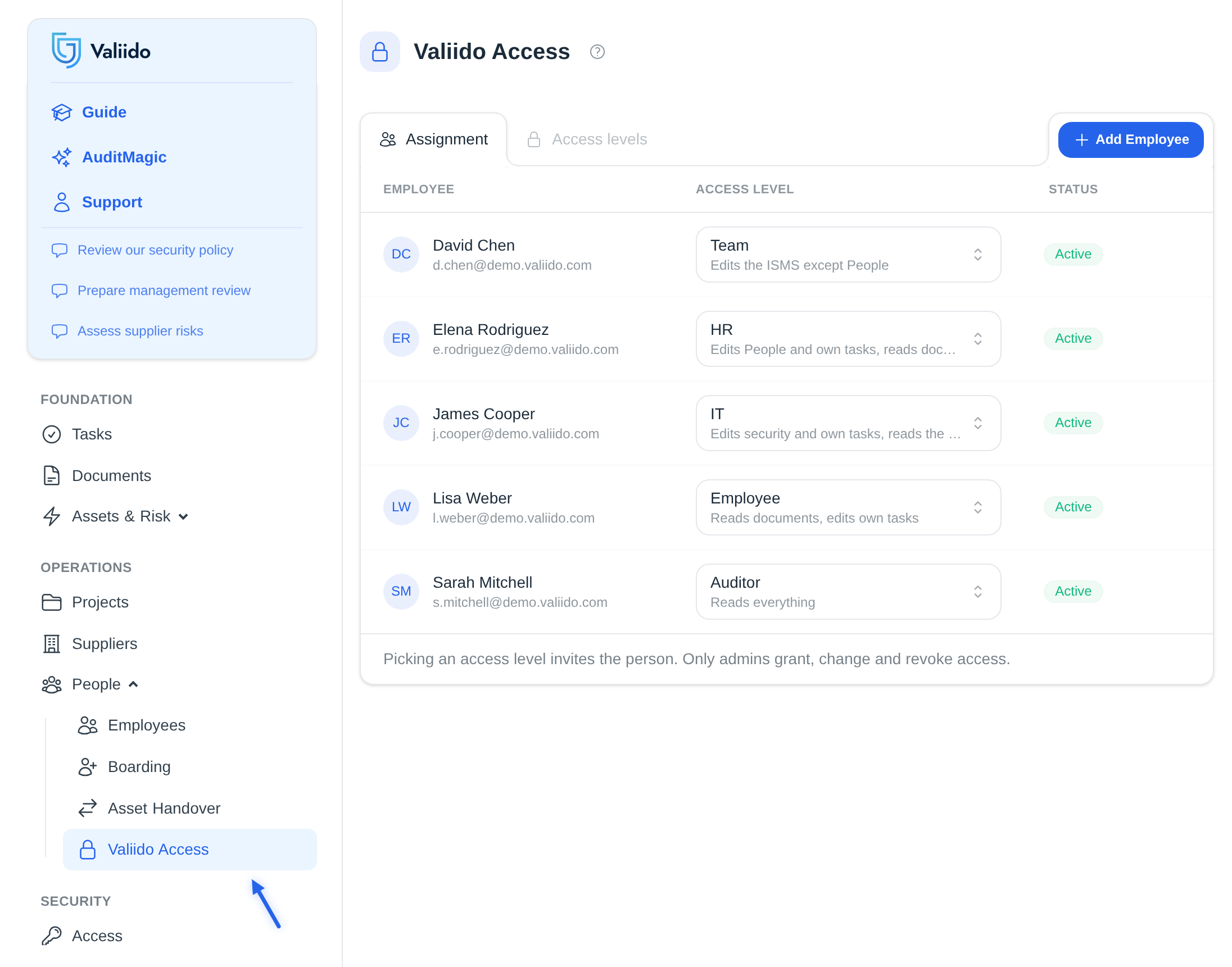
Invite colleagues
- If the person isn’t listed, select Add Employee.
- In their row, choose an Access level and confirm.
The emailed password setup link expires in 7 days. Use to resend it.
Choose an access level
Compare permissions under Access levels.
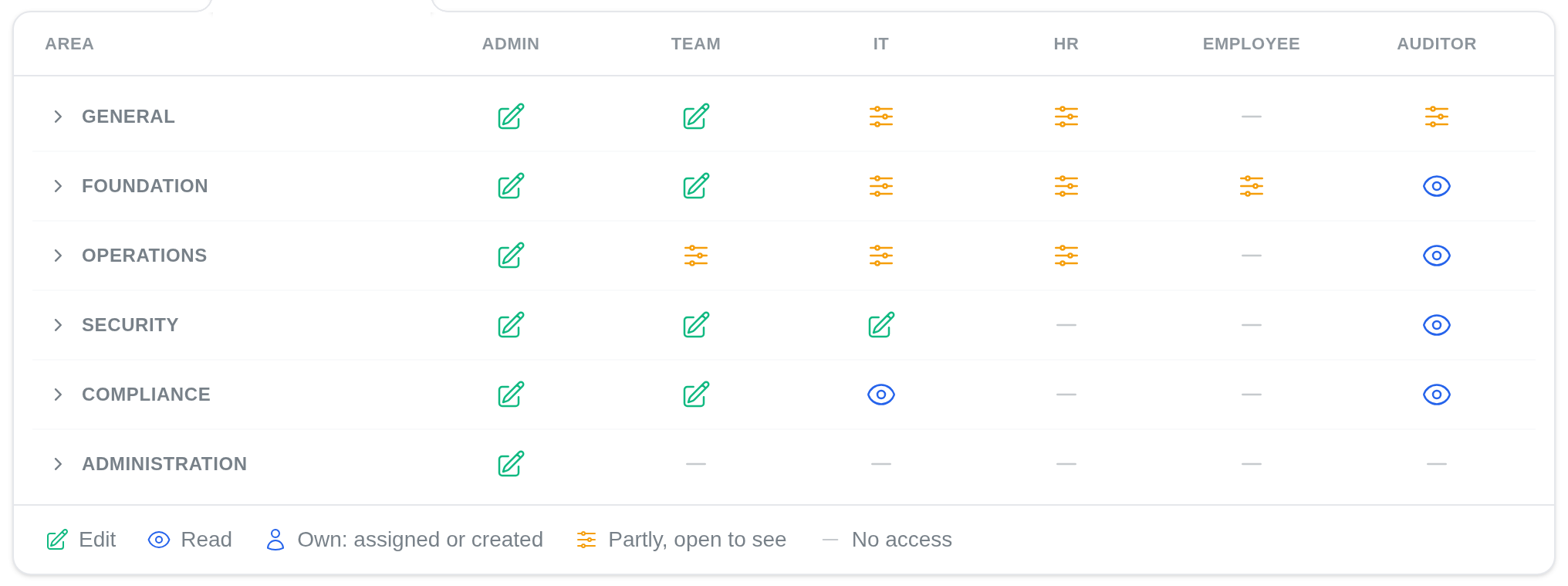
- Admin can edit everything, including Administration.
- Team can edit the ISMS except People.
- IT can edit Security and read all other areas except People.
- HR can edit People and read documents.
- Employee can read documents.
- Auditor has read-only access everywhere.
IT, HR, and Employee users see only tasks they created or were assigned directly or through a role. Give Admin access to only a few people.
Change or revoke access
- Open the Access level menu in the person’s row.
- Choose another level or Revoke Access.
Revoking access keeps the employee and their records. Only another admin can change your level.
Common questions
Who can grant access?
Only admins can see Valiido Access or grant access.
How do I give my auditor read access?
Invite them as an Auditor for read-only access to your ISMS.
Can I require passkeys for everyone?
Yes, under Administration → Sign-in with passkey. Set up your own passkey first (see Passkeys).
Why can't I archive an employee?
They still have access or a pending invitation. Revoke their access first.