
ISMS responsibilities stay with employee roles such as information security officer, even when someone else takes over.
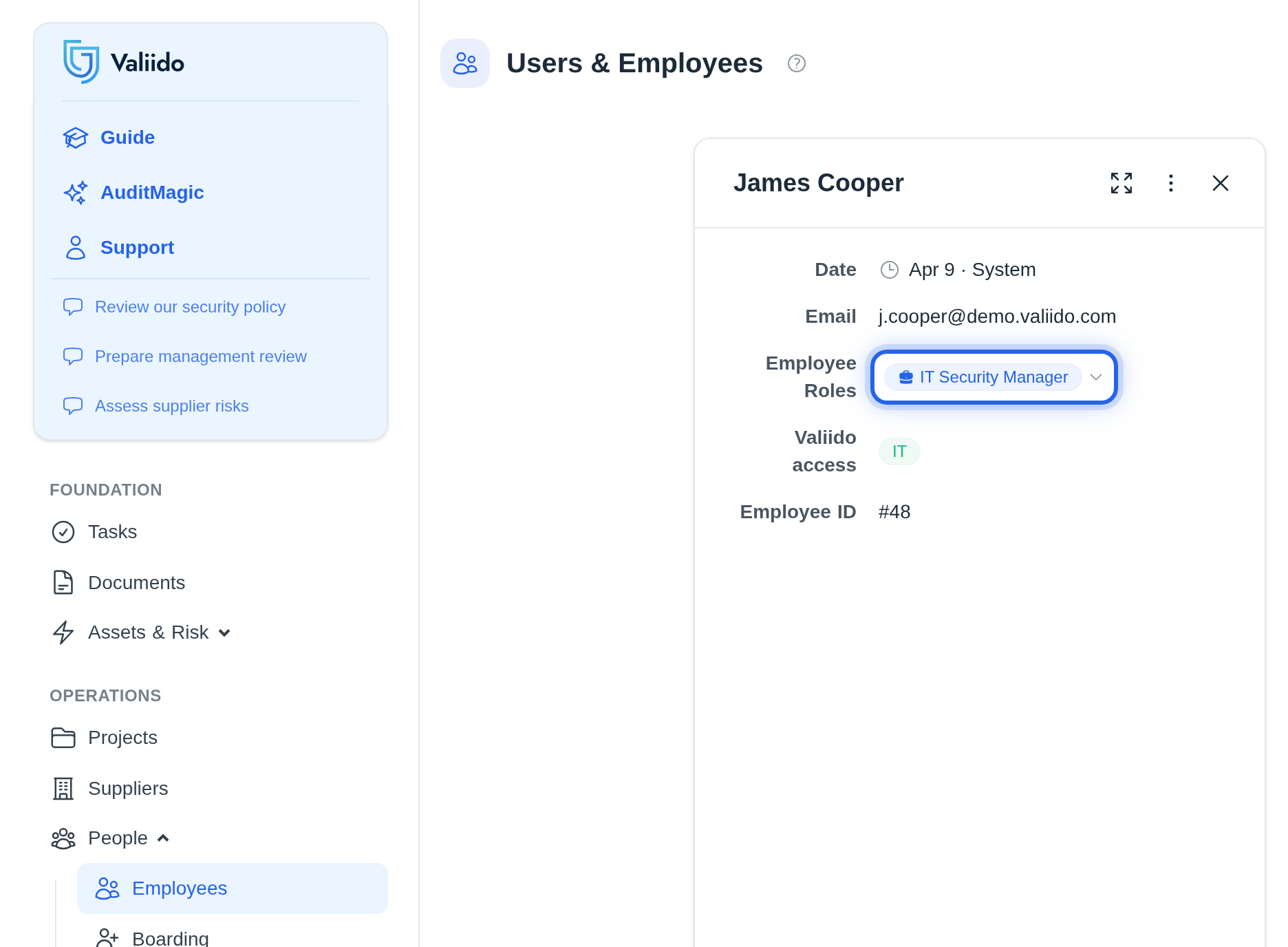
Assign a role
- Under People → Employees, open the employee’s record.
- Under Employee Roles, select a role. To create and assign a new role, enter its name and press Enter.
People can hold multiple roles and share a role with others. Use the pencil to edit its name and description.
Tip: Use roles from your information security policy, such as management, ISO, IT lead, and data protection officer. Find the ISO template under Templates.
Assign tasks to a role
Assign recurring duties to a role.
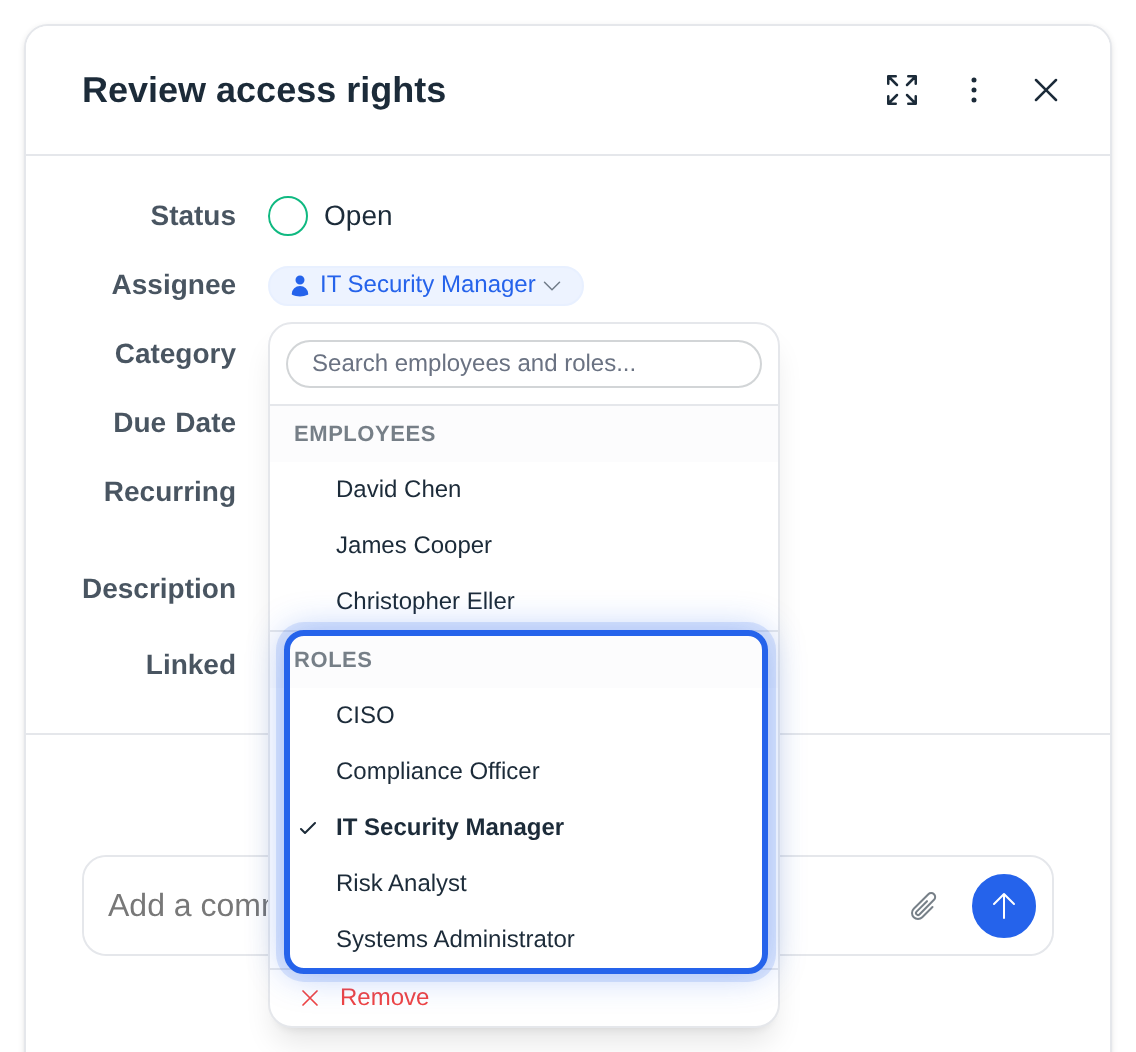
- Open the task.
- Under Assignee, select the role.
Everyone with the role gets the task in their task list and weekly task email. Roles can also be responsible for risks, assets, and projects.
Common questions
What is the difference between a role and an access level?
A role describes your ISMS function. Your access level under People → Valiido Access determines what you can see and change.
Who sees a role's tasks?
Admin and Team see all tasks. The Auditor can read them. IT, HR, and Employee see only tasks they created or tasks assigned to them or their roles.
Can I customize access levels?
No. Find each level’s permissions under Access levels. Only Admin and Team can edit documents. Use Access to protect confidential folders.
Why can't I delete a role?
Unassign the role from everyone who holds it and from any tasks. The trash icon then appears.