
Employees hold ISMS roles, take on tasks, and manage risks, assets, and checklists.
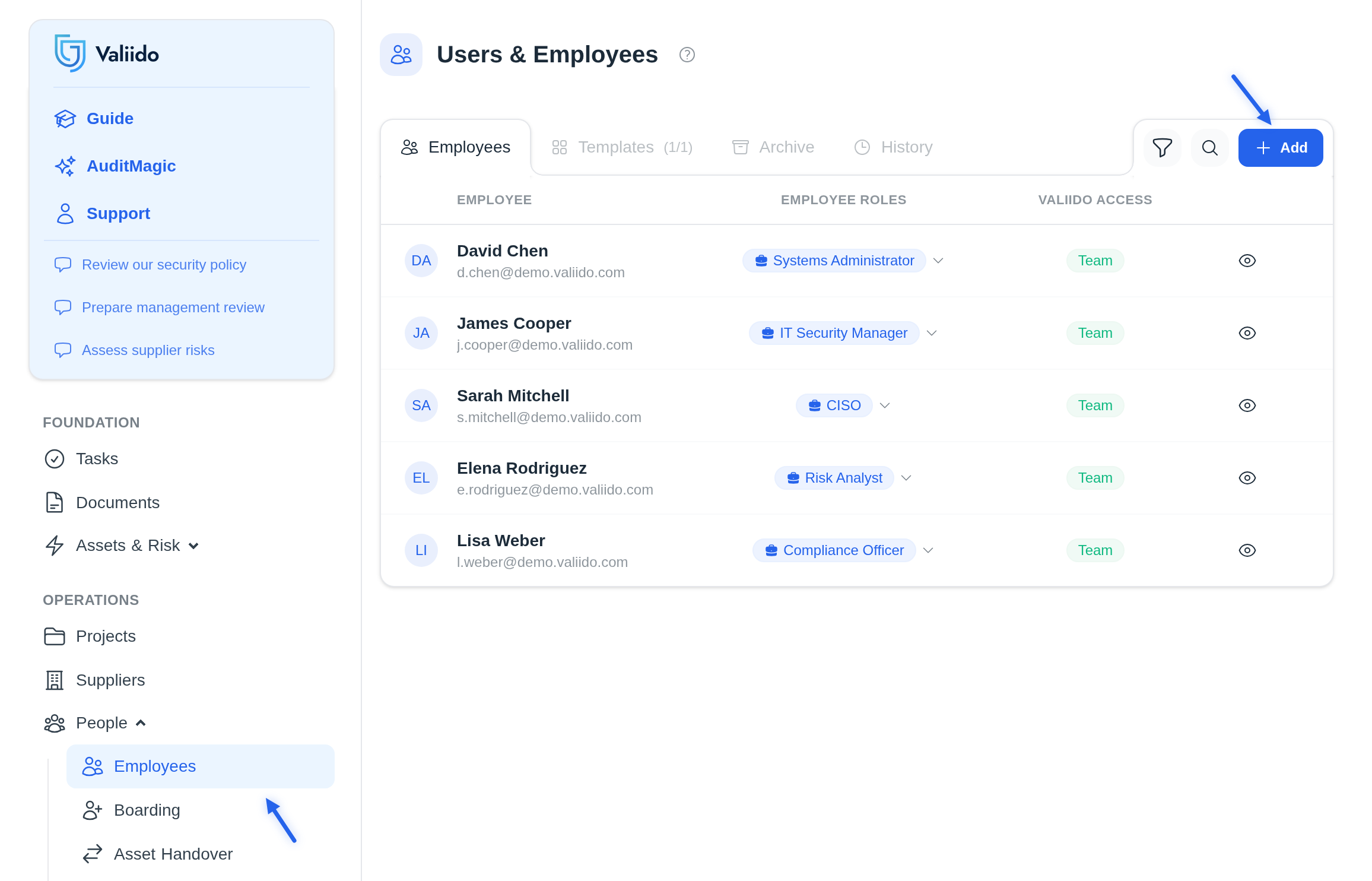
Add an employee
- Select Add.
- Enter first name, surname, and email address.
- Choose roles, then select Save.
New employees receive neither email nor access. Grant access under People → Valiido Access.
Assign roles
Roles describe functions such as information security officer or head of IT.
- Click the employee’s row.
- Under Employee Roles, choose one or more roles or enter a new name.
You can assign tasks to roles, too.
Tip: Templates has ready-made roles.
Archive an employee
Archive departing employees after offboarding.
- Revoke their access under People → Valiido Access.
- From the employee’s menu , select Archive.
Archiving removes employees from the list and all selection fields. Tasks, checklists, assets, and history stay linked.
Anonymize or delete
- Open the Archive tab.
- In the menu , select Anonymize or Delete.
Anonymizing permanently removes the name and email address. “Anonymized employee” plus a number appears everywhere. Deleting moves the record to the trash under History.
Common questions
How do roles and Valiido access differ?
Roles describe ISMS functions. Access levels determine what employees can see and change.
Why can't I delete an employee?
You can only delete archived employees. Access or a pending invitation prevents archiving.
Can I add external people?
Yes. Add them like employees. Signing in requires Valiido access.
How do I organize training?
Copy the training concept and presentations from Documents → Templates. Schedule basic training as a yearly recurring task. Train new employees during onboarding.