
Boarding checklists help you manage personnel changes securely in your ISMS and cover NDAs, access, and devices.
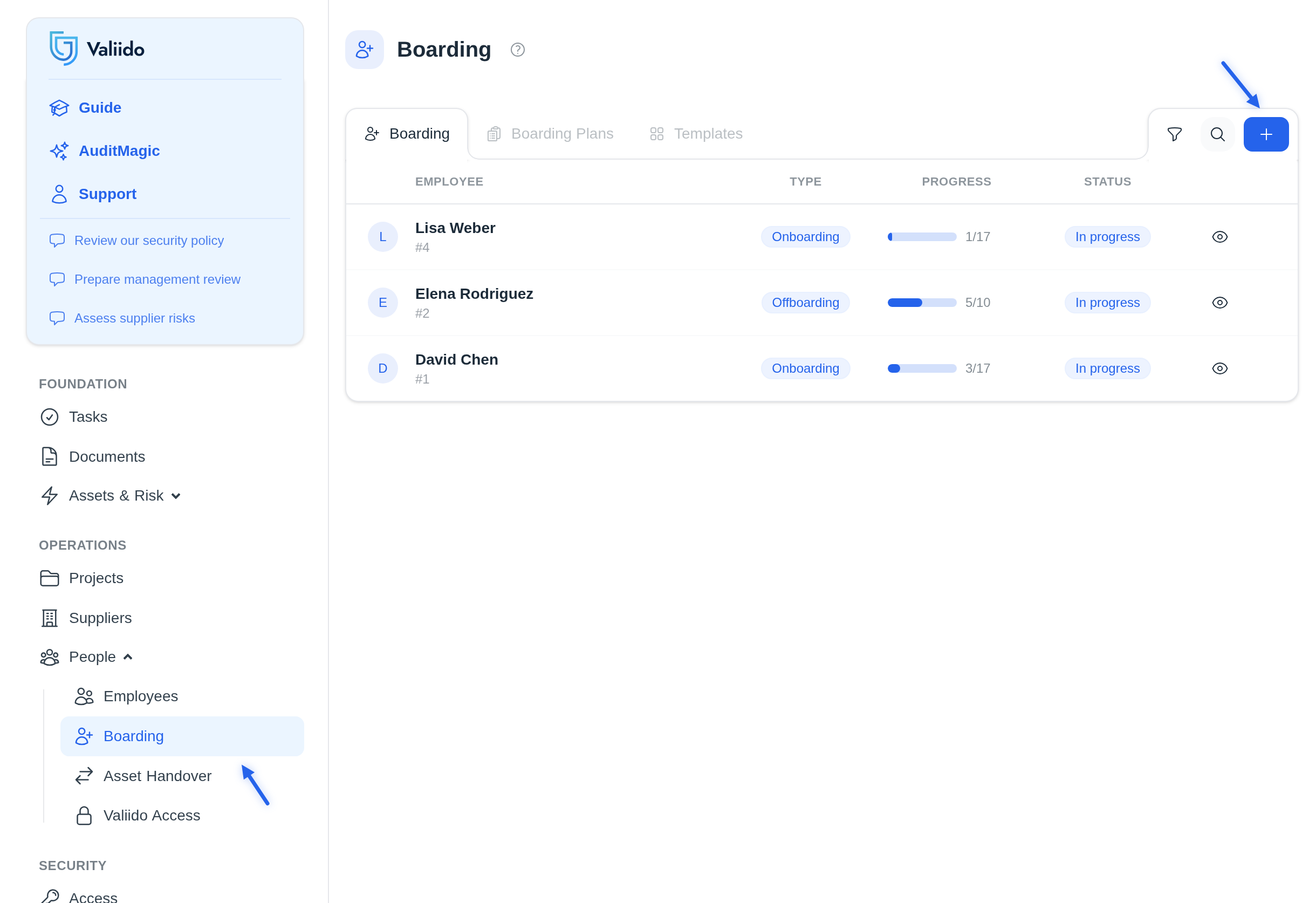
Set up a boarding plan
Onboarding, Offboarding, Reboarding, and Absence each have one plan. Reboarding covers returns to work and role changes.
- Under Templates, select Copy next to the plan you want.
- Open the plan under Boarding Plans.
- Click a step to edit it. To add another, select Add step.
Tip: Copy the HR security policy under Documents → Templates. It sets the deadline for deactivating accounts when someone leaves.
Start a boarding
- Select Start New Boarding.
- Choose an employee and a boarding type, then select Start Boarding.
You can choose only unarchived employees and types with a plan. When you start, Valiido copies all plan steps into a separate checklist.
Check off steps
- Click the row to open the checklist.
- Check off completed steps and record details in a comment .
- To add a step just for this person, select Add custom step.
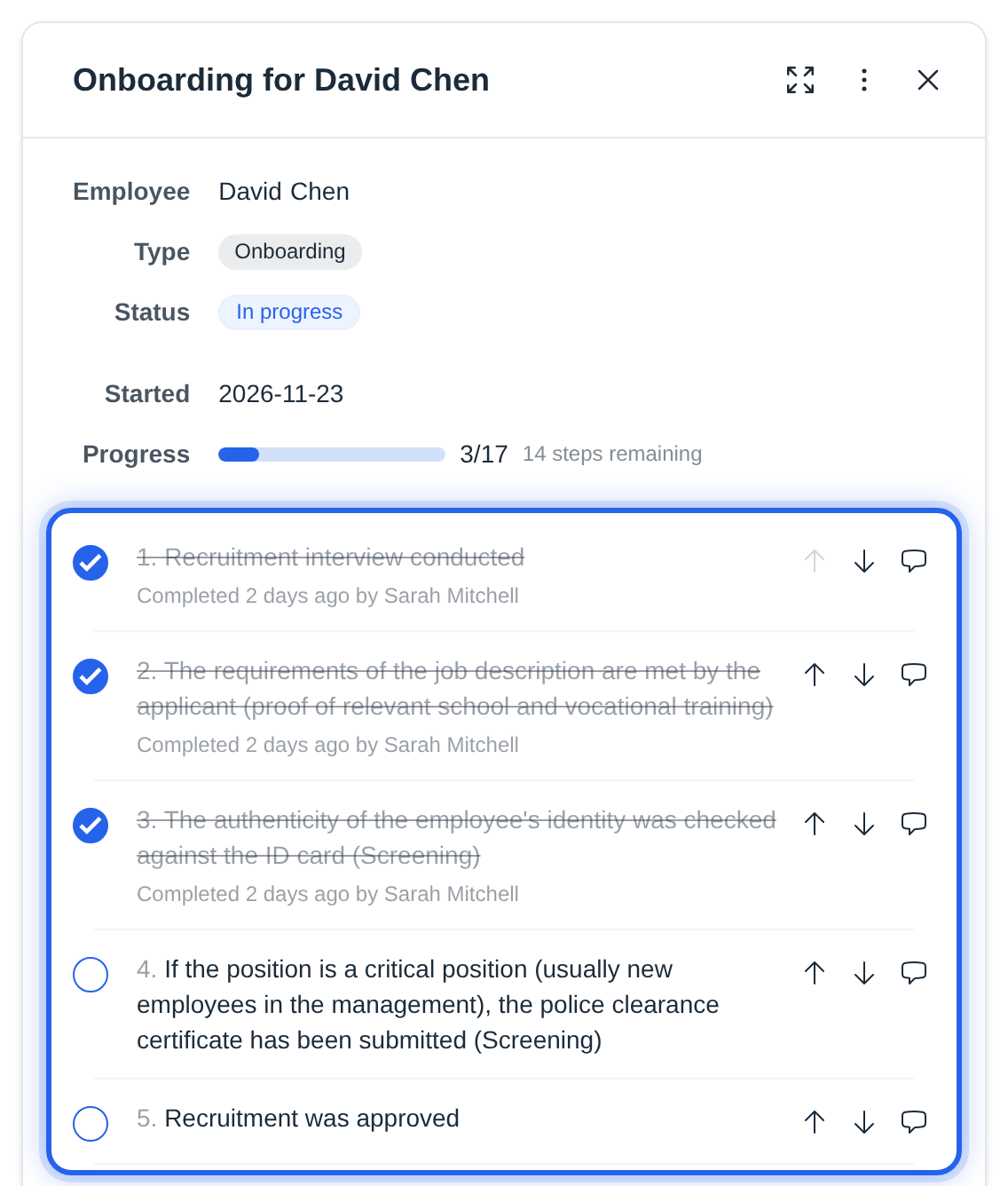
Checking off the last step sets the status to “Completed.” Clearing a check mark restores “In progress.”
Common questions
Does changing a plan affect boardings in progress?
No. Plan changes apply from the next boarding onward.
Can I show completed boardings as evidence?
Yes. Use to filter by “Completed.” The checklist records the start and end dates and who completed each step when.
Why can't I start a second onboarding for the same person?
Yes. Use to filter by “Completed.” The checklist records when the boarding started and ended, who completed each step, and when.
Who sees boardings?
Admin and HR can edit boardings. Auditors have read-only access. Team, IT, and Employee have no access.