
When employees join, change roles, or leave, you can track which laptops, keys, badges, and access rights they hold or must return.
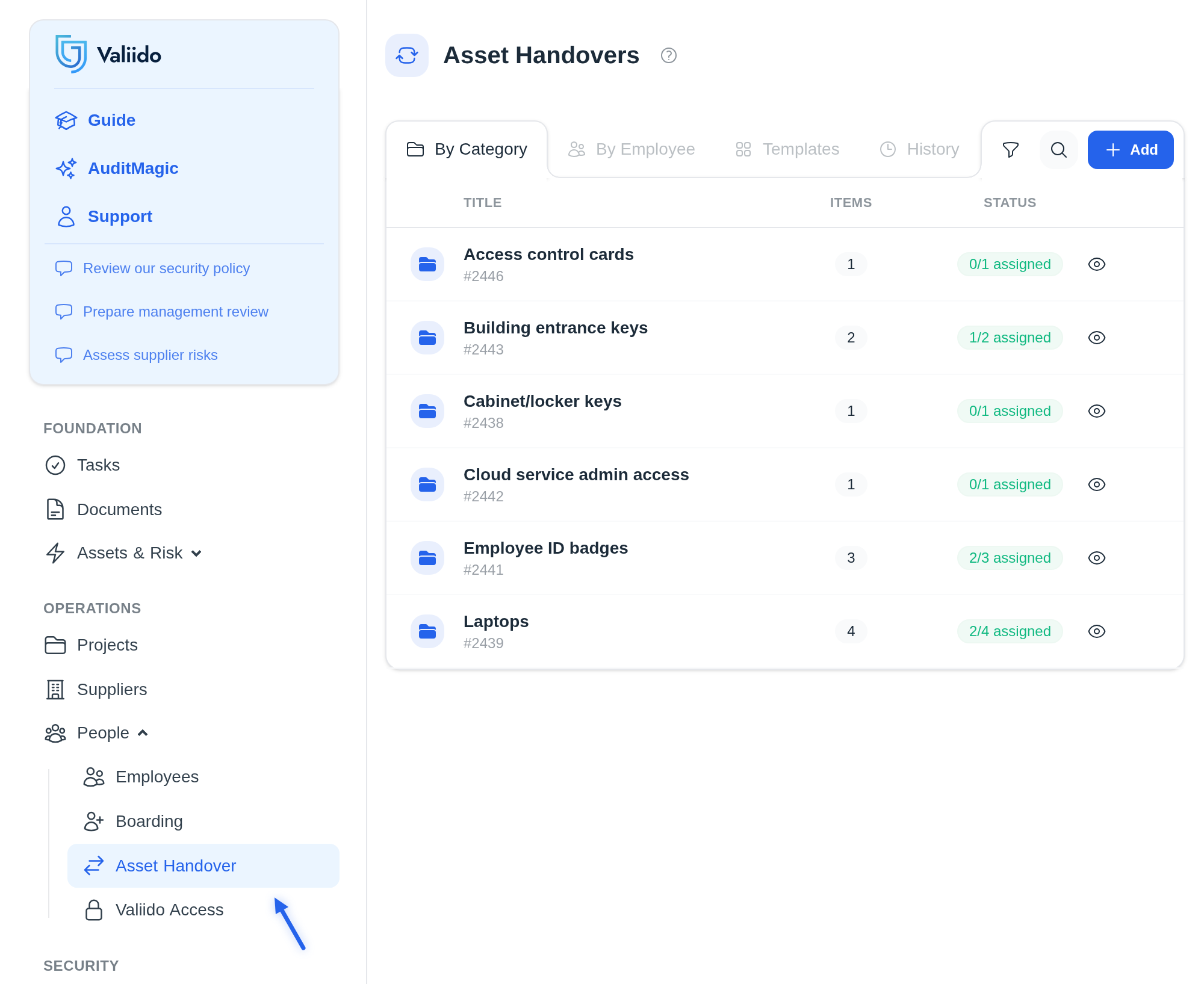
Create a category
- Select Add.
- Name the group of similar assets (for example, “Company laptops”) and select Create Category.
- Open the category. Enter each device’s identifier (such as its serial number) and select Add item.
Tip: When you copy categories from Templates, their items are available.
Issue an asset
- Open the category.
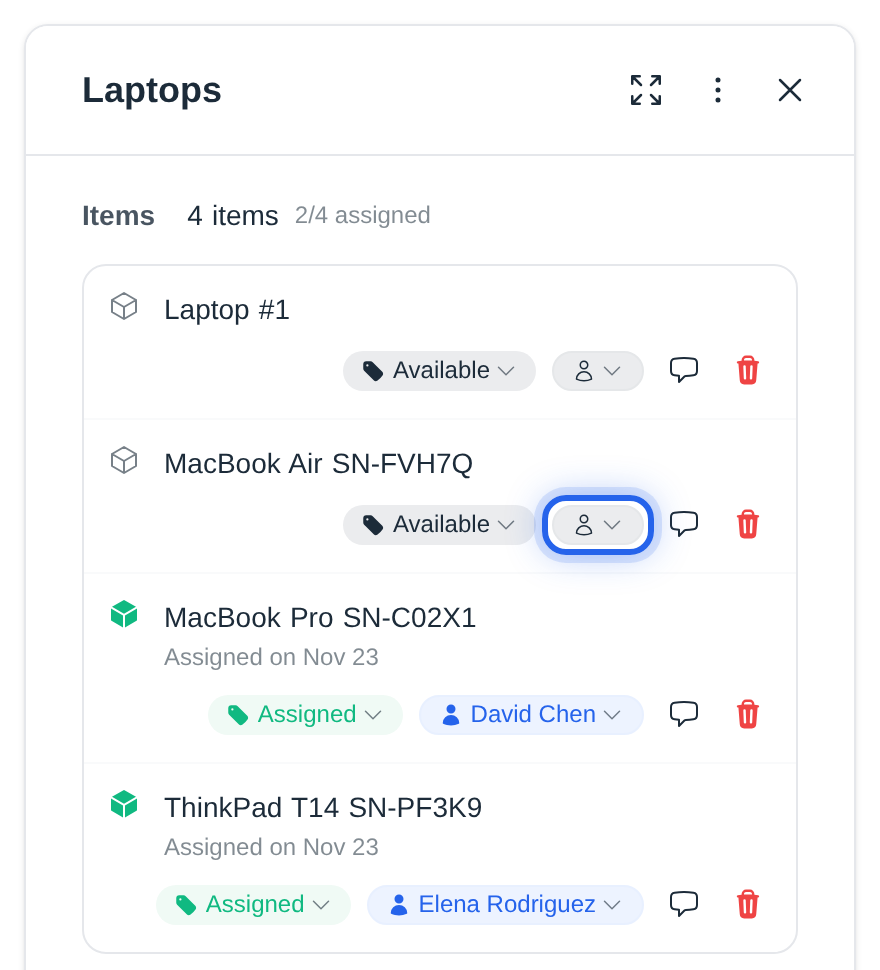
- Select next to the item, then select the employee.
Valiido sets the status to Assigned and records the handover date. Before issuing mobile devices, have the employee sign “Issuing mobile devices to employees.”
Record a return
- Open the employee’s record under By Employee.
- Select next to the asset and confirm. The asset is available again. For a missing device, select Lost or Retired. Also report loss or theft as an incident.
Each quarter, check for outstanding returns and devices held by former employees. When a contract ends, also check storage media, paper copies, and shared accounts such as social media accounts.
Common questions
How can I verify handovers and returns?
The category’s History records who issued or took back each asset and when.
Can employees sign for an asset?
Valiido doesn’t collect signatures. Attach the signed handover document to the item as a comment .
Are asset handovers linked to Assets or Boarding?
No. Handovers have their own items. Also record off-site devices under Assets. During offboarding, check By Employee for outstanding returns.
Who can see asset handovers?
Admin and HR can edit. Auditors can only read. Team, IT, and Employee have no access.