
For your risk assessment, record what your ISMS protects, from customer data to firewalls, along with each asset’s owner and protection levels.
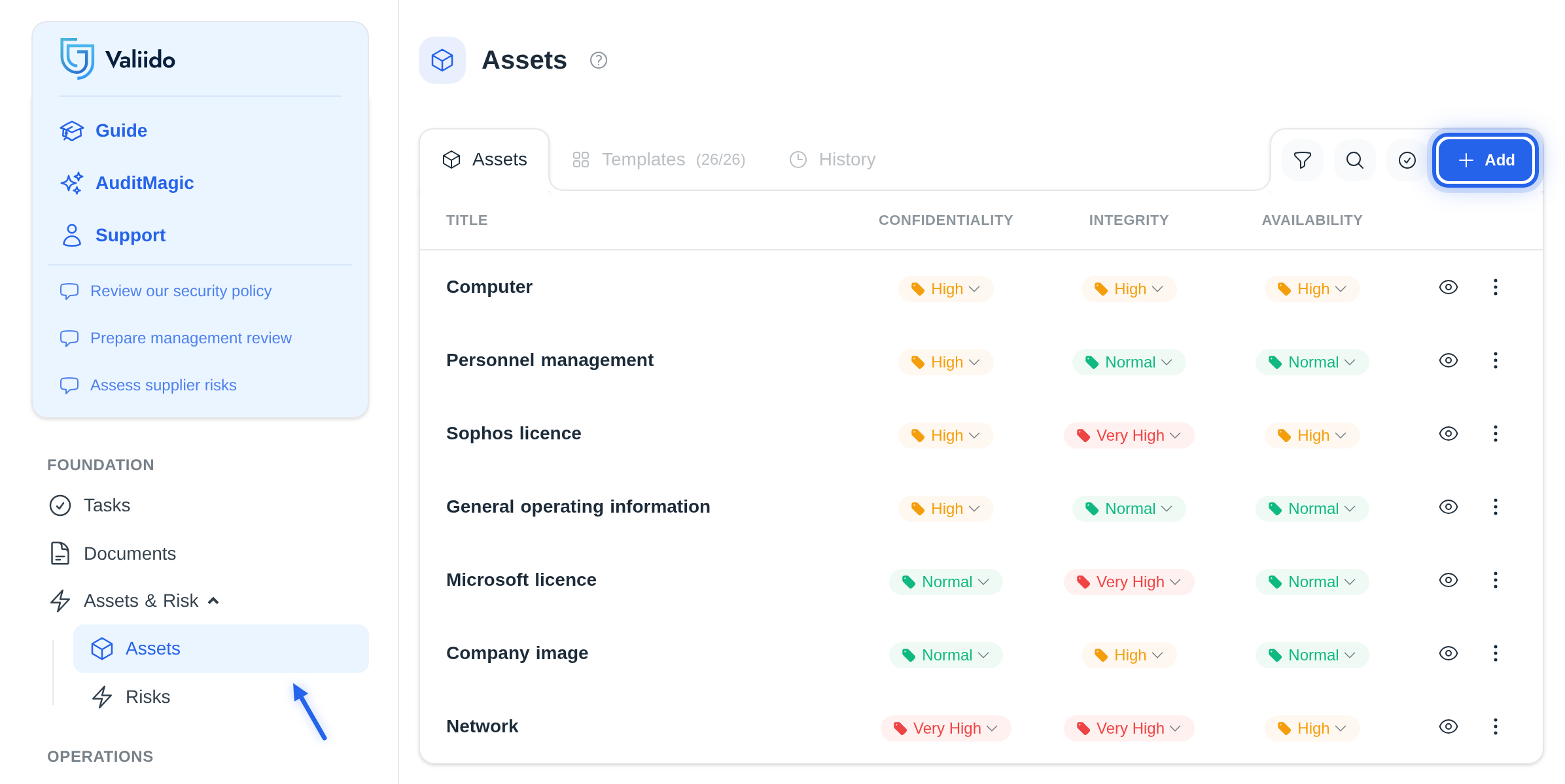
Create an asset
- Select Add.
- Enter a unique name and select Save.
- In the details, set the type, carrier, and owner (a person or role).
The default type is Software.
Tip: Use Templates for assets with preset protection levels.
Set protection levels
- Choose Normal, High, or Very High for confidentiality, integrity, and availability.
- Explain each rating in the detail field below it, citing consequences such as reputational damage or a fine.
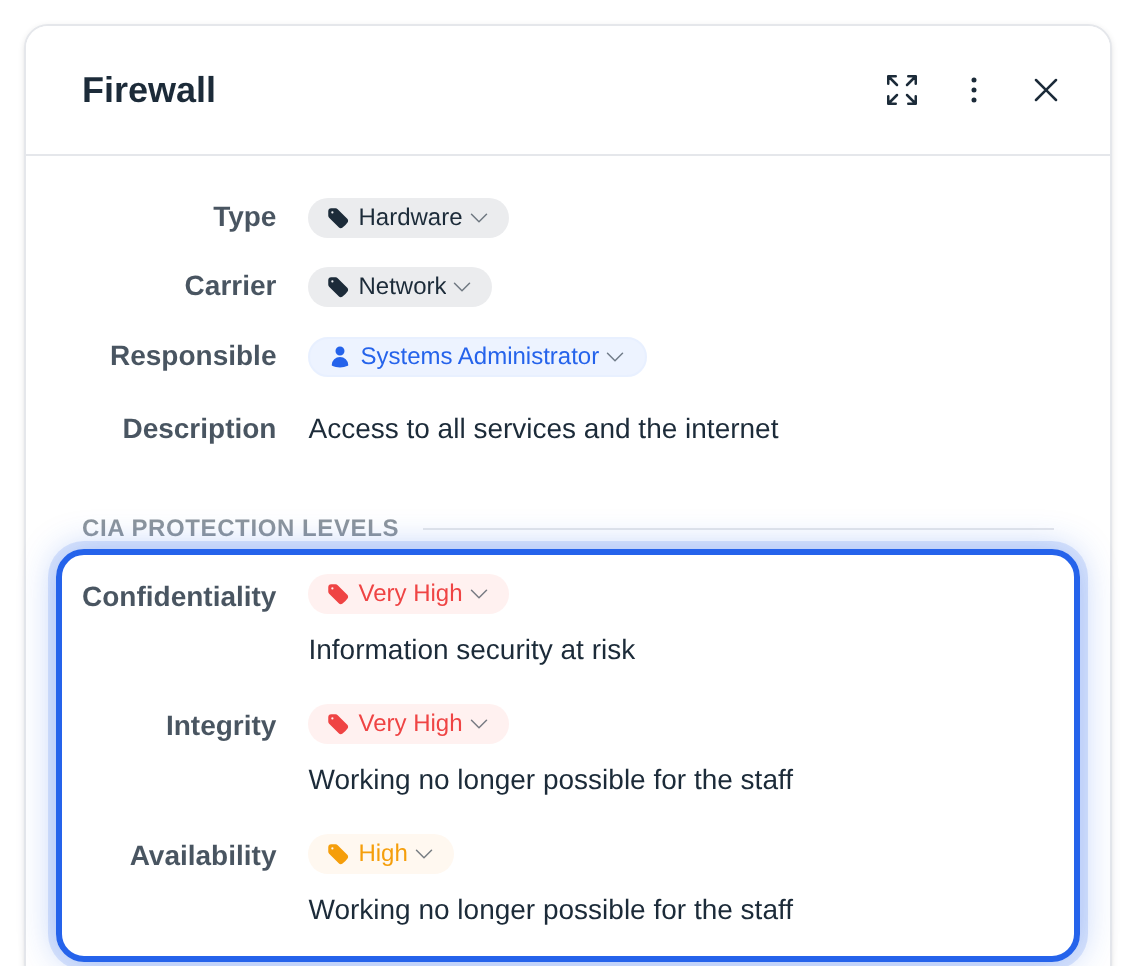
The Critical filter includes assets with at least one Very High rating.
Link to risks
- Open the asset.
- Under Linked, select Link and search for the risk that threatens your asset.
The risk links back to the asset. You can also link governing documents.
Review the inventory
Review the inventory at least annually and after major changes such as a reorganization.
- Schedule a review task with the Yearly interval.
- Check owners, carriers, and protection levels. Start with critical assets using the Critical filter.
- Carry changes over to the linked risks.
Common questions
How do I import an existing asset list?
Send Support in Valiido an Excel or CSV attachment. We import hundreds of entries into the matching fields.
How detailed should assets be?
Record key information assets such as customer data, product documents, and source code, along with the systems that process them. For individual devices, refer to your directory or MDM to avoid duplicates.
Why does AuditMagic show a notice?
AuditMagic checks each asset after you save it. Common triggers include a placeholder explanation or a type that doesn’t match the carrier.
Who sees and edits assets?
Admin and Team can edit assets. IT and Auditor have read-only access. HR and Employee have no access.