
Tasks drive the implementation of your ISMS: you plan measures and recurring checks, assign responsibility, and every completed task records what was done and when.
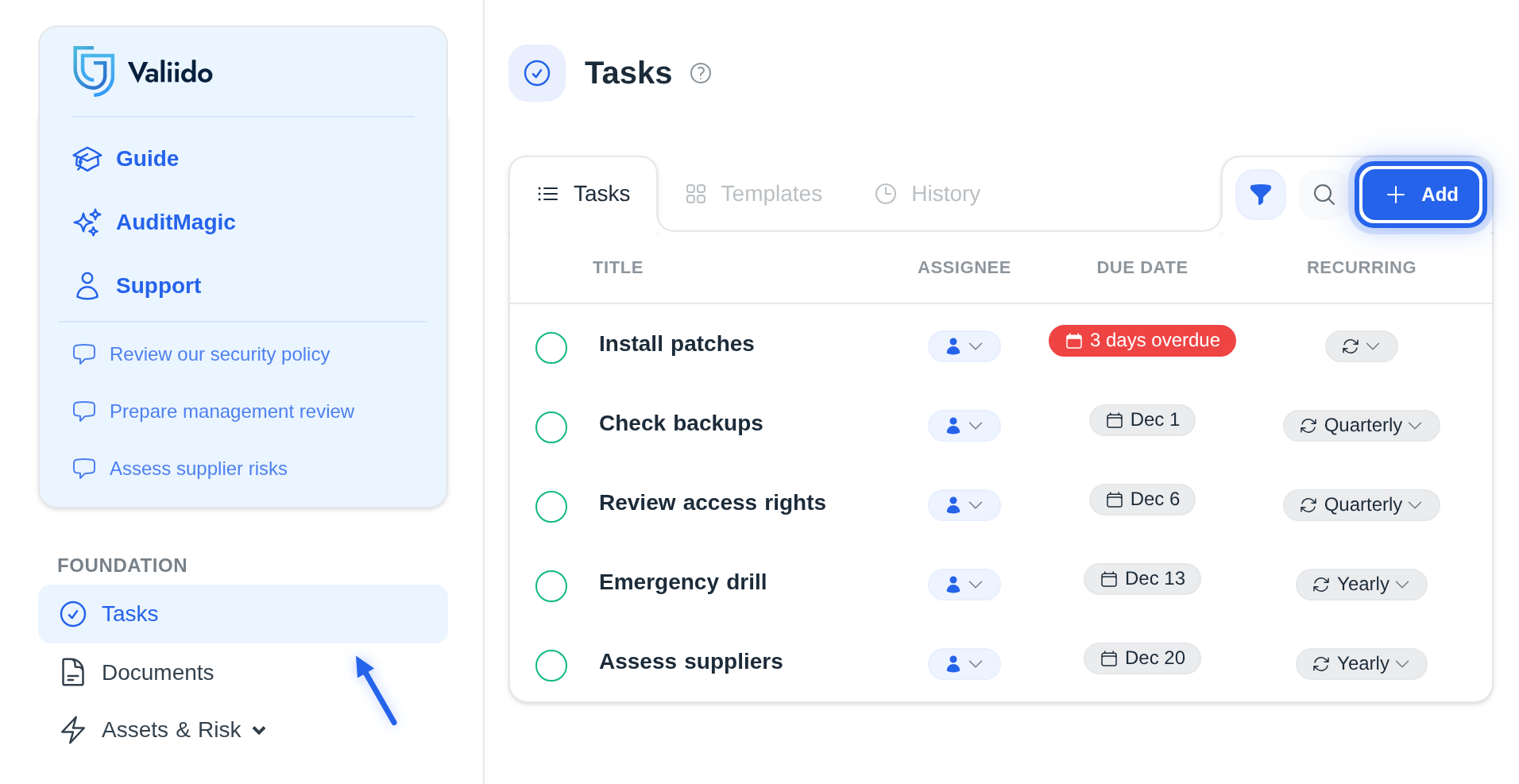
Create a task
- Select Add.
- Enter a title and select Save.
- Add more values like Assignee and Due Date.
Click the row to open the details. To complete a task, tick the circle .
Tip: Ready-made tasks are in the Templates tab.
Recurring tasks
Recurring tasks plan regular work, such as checking backups.
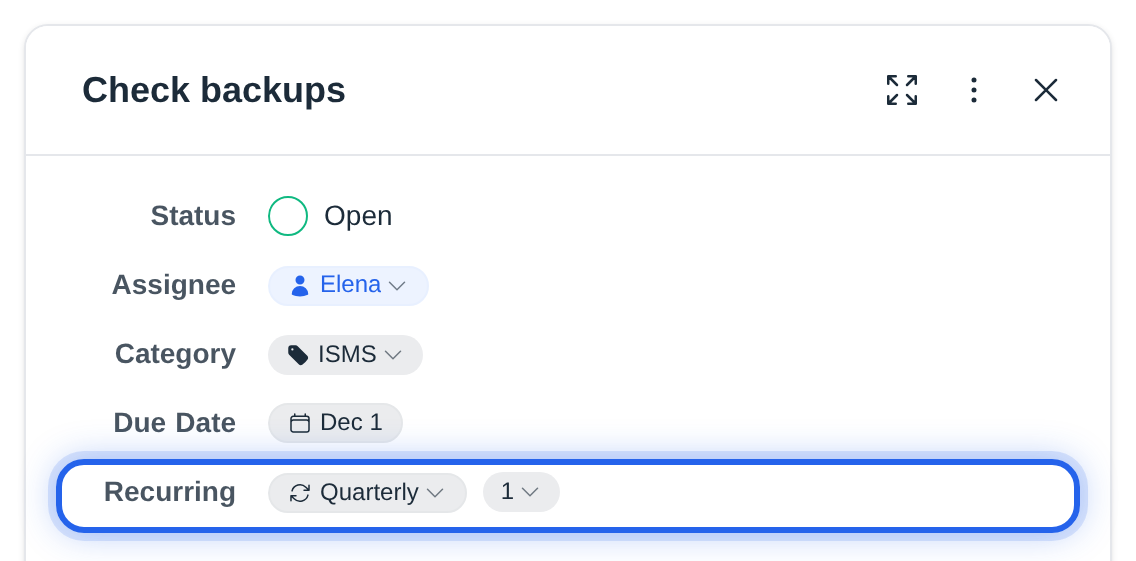
- Choose an interval under Recurring, from weekly to every 3 years.
- Complete the task.
Valiido then creates the next task with the same title, assignee and links. The new deadline counts from the day you completed it.
Common questions
How do I find specific tasks?
Filter with the funnel , search with the magnifying glass .
Who sees which tasks?
Admin and Team see all tasks, the Auditor reads them. IT, HR and Employee only see their own and assigned tasks.
What happens when I duplicate a task?
The copy takes all fields and the links you can see. Comments and history stay with the original.
How do I get a deleted task back?
In the History tab, filter for deleted tasks and select Restore.