
Assess risks from service providers and cloud services, document your dependencies, and approve suppliers.
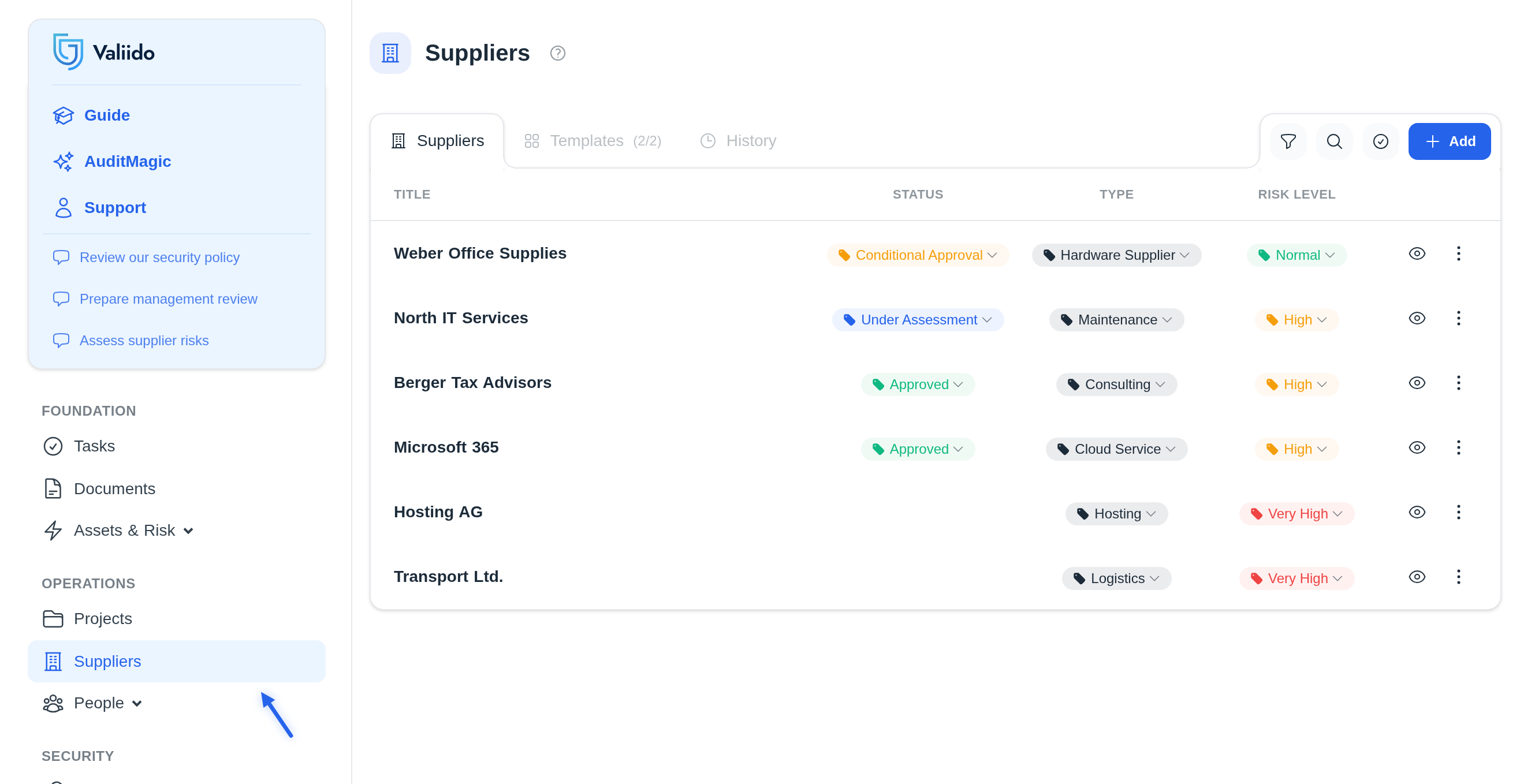
Add a supplier
- Select Add.
- Enter the name and select Save.
- In the details, select a Type, such as Cloud Service or Hardware Supplier.
Fill in “Security Req” for Hosting, Cloud Service, and Software Development.
Tip: Start with the supplier policy under Documents → Templates. Suppliers copied from Templates start with “Pending Review.”
Assess a supplier
Assess your three most important suppliers first, such as cloud providers and IT service providers.
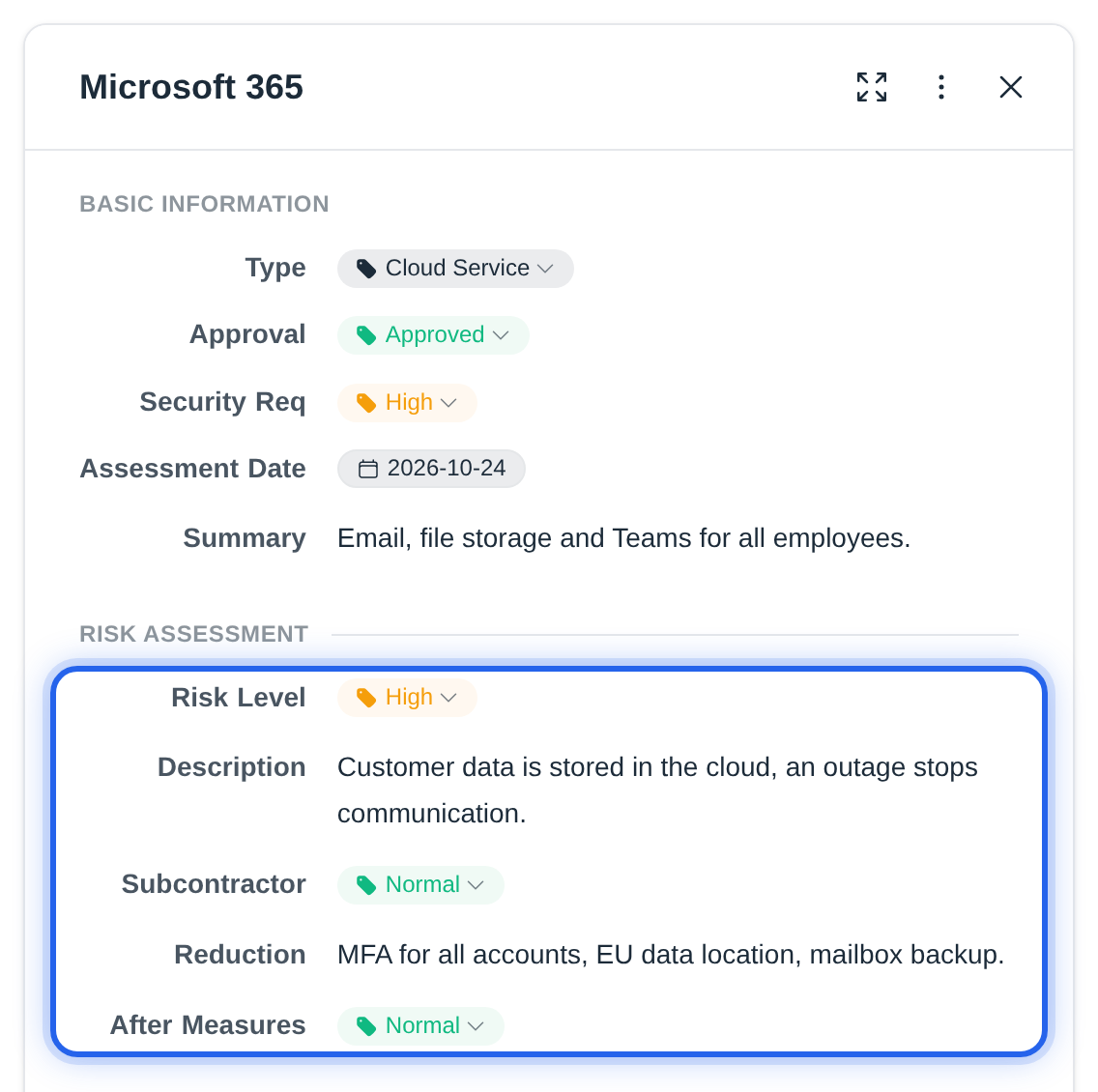
- Select a Risk Level (Normal, High, or Very High). Explain your choice under “Description.”
- Record measures under “Reduction” and the remaining risk under After Measures.
- Set the Assessment Date.
Approve a supplier
- Under Compliance, document evidence such as certificates, supplementary agreements, or nondisclosure agreements (NDAs).
- Under Approval, select a status such as Approved or Conditional Approval.
- Under Linked, link contracts, risks, or assets.
Have suppliers sign the supplementary agreement if they access your data, network, or premises. If you share confidential information, have them sign the NDA too.
Common questions
Are cloud services like Microsoft 365 suppliers too?
Yes. Add every cloud service as a Cloud Service, including Valiido.
Do I need evidence for a hardware supplier?
Only approval requires a Compliance entry. If the supplier has no access to your data, one sentence explaining your choice is enough.
When must I reassess a supplier?
At least annually and after any incident, contract breach, or acquisition. AuditMagic flags approved suppliers whose last assessment was over a year ago.
Who can see suppliers?
Admin and Team can edit suppliers. IT and Auditor have read access. HR and Employee have no access.