
Manage information security throughout each project, including TISAX® customer projects, by classifying it, assessing risks, and documenting sign-off.
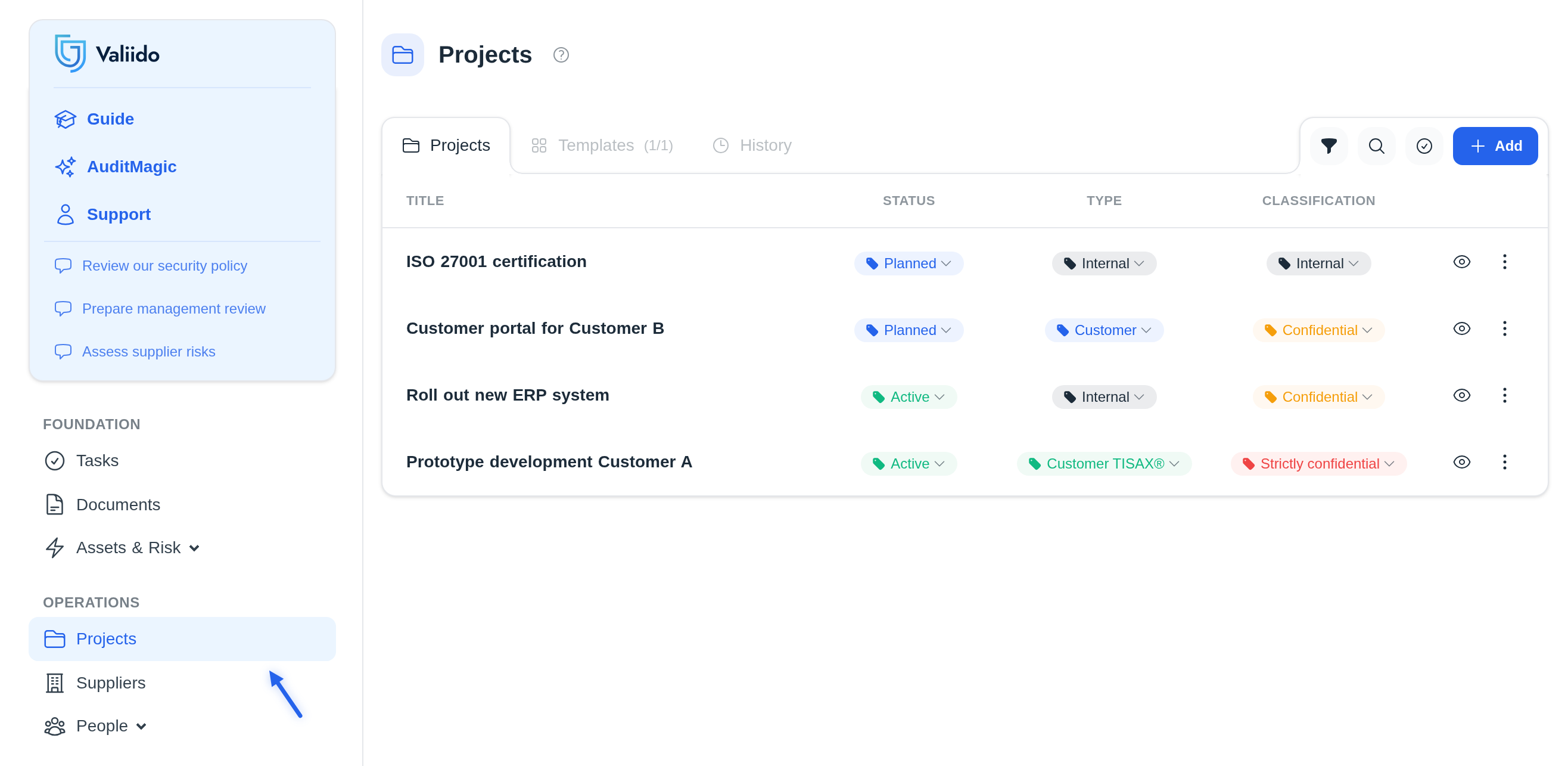
Create a project
- Select Add.
- Enter a title and select Save.
- Add details such as Responsible, Start Date, and End Date.
Select a row for details. AuditMagic flags projects without a description as incomplete.
Manage major ISMS changes (such as a new site or ERP system) as projects.
Tip: Copy the “Project management” document from Documents → Templates. It defines when the information security officer assesses projects. Find project templates under Templates.
Classify a project
- Under Type, choose Internal, Customer, or Customer TISAX®.
- Under Classification, choose Internal, Confidential, or Strictly confidential.
- Choose a Status, such as Planned, Active, or Completed.
Use to filter for active and planned projects or by project type.
Link risks, assets, and documents
For confidential and strictly confidential projects, assess and link the risk at the start.
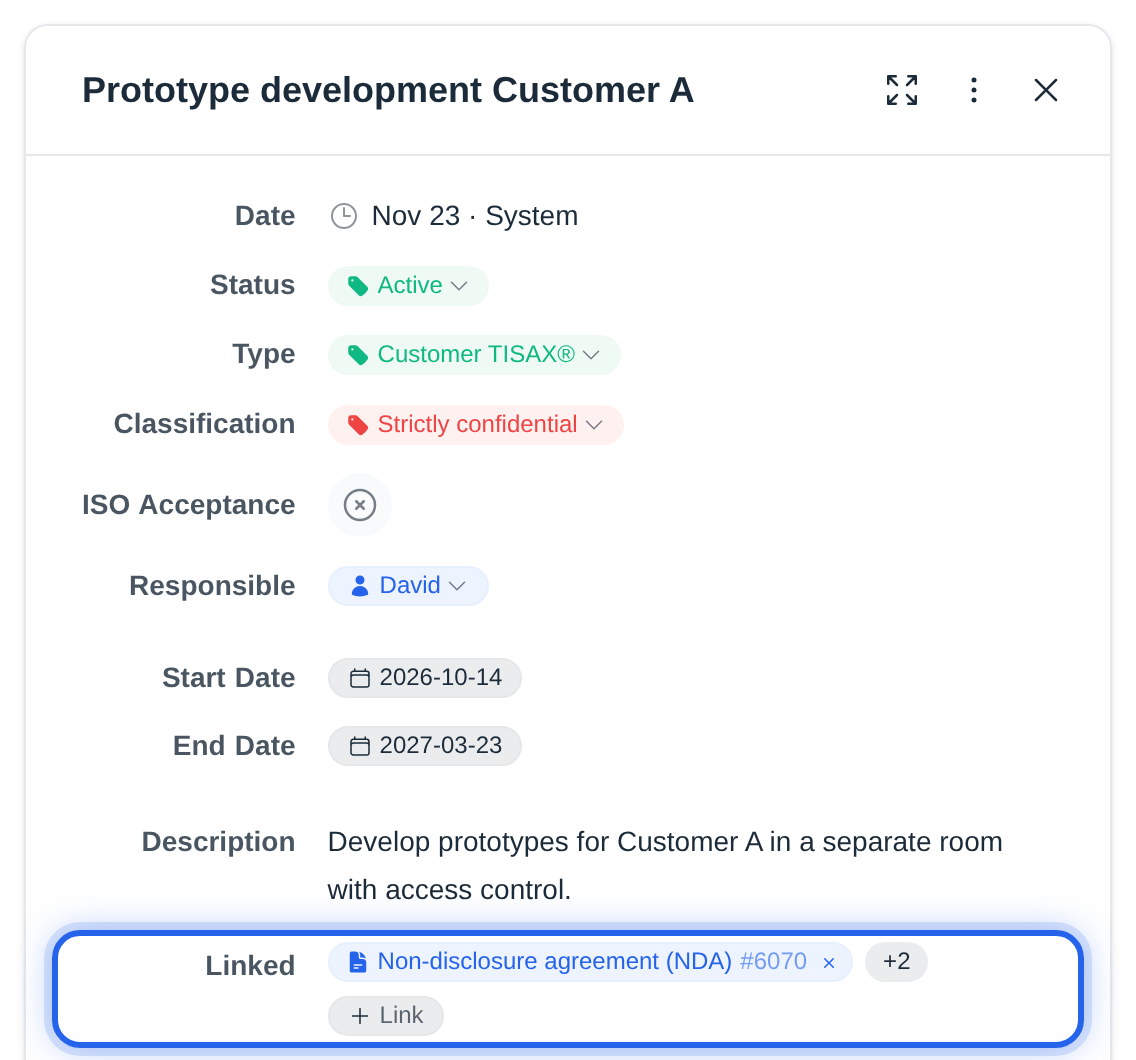
- In the project details, select Link under Linked.
- Search by title or number and select the result.
The link works both ways. A linked project counts as risk treatment. AuditMagic reassesses the risk.
Reassess the risk after major changes. At project close, the information security officer reviews the measures and records approval in the project. Track open items as tasks or risks.
Common questions
How do I handle customer projects with prototype protection?
Choose the Customer TISAX® type. One project covers a contract with multiple subprojects. Assign prototype rooms to a security zone in the Physical access policy.
Who sees which projects?
Admin and Team can edit all projects. IT and Auditor have read access. HR and Employee have no access.
How do I duplicate a project or get a deleted one back?
As with every record, see Duplicate & restore.