
Document who has access to each system and keep a record of every access review.
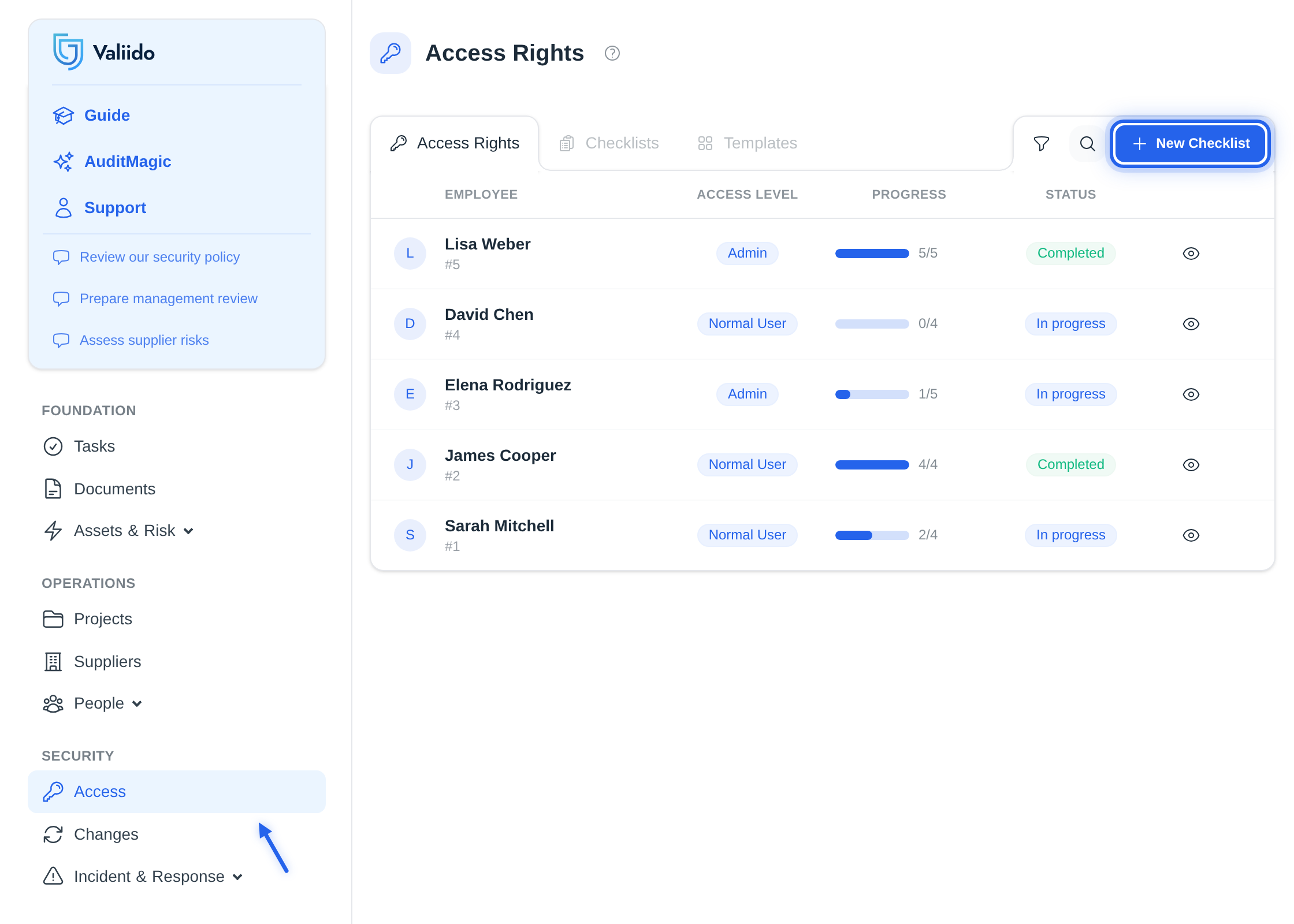
Create an access level
An access level is a checklist of systems for a role, such as standard user or admin. Grant access by role and keep admin permissions separate from everyday accounts.
- In “Checklists,” select New Checklist.
- Enter a name.
- Add systems with Add system.
Tip: Find ready-made access levels under Templates.
Assign access
- In “Access Rights,” select New Checklist.
- Choose the employee and access level.
- Select Assign Access. Check off each system once access is set up.
Valiido creates one checklist per employee and access level. Checking the last item sets its status to “Completed.”
Review access
Check access against employee departures and role changes.
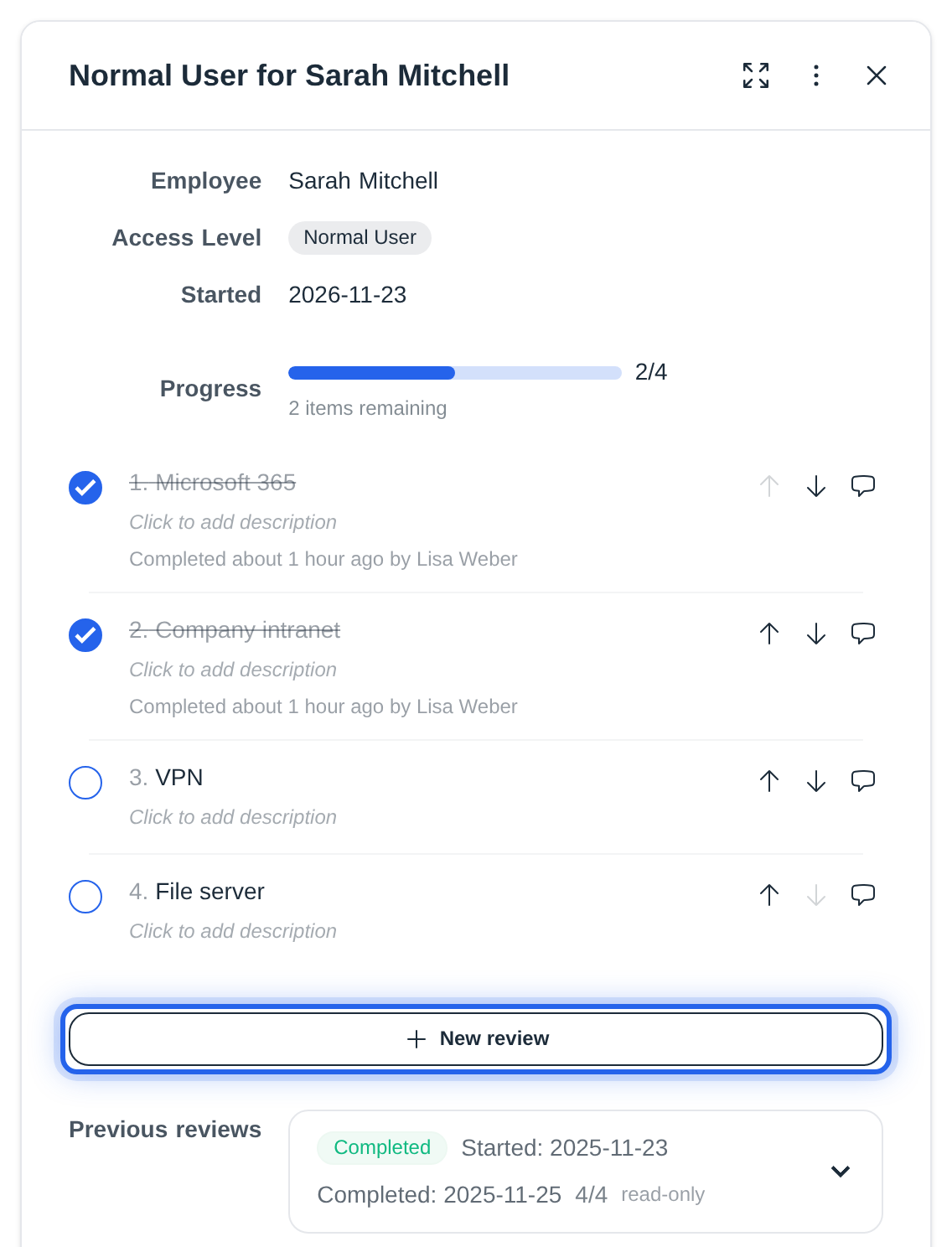
- Open an employee’s checklist.
- Select New review.
- Check off the systems the employee still needs. Record discrepancies under “Notes.”
Each review uses the systems from the current access level. Earlier reviews remain as read-only evidence.
Common questions
Do I need to record every permission?
No. Roles and groups bundle permissions. One system, such as “SharePoint guest access,” can cover a whole group. Confirm it at every review.
How often do I have to review access?
The “Access Policy” template calls for reviews at least annually and after events such as incidents. Schedule the regular review as a recurring task.
Who sees access rights?
Admin, Team, and IT can edit access rights. The Auditor role has read access. The HR and Employee roles have no access.
How do I get a deleted checklist back?
Reassign the same access level to the same employee. Valiido restores the checklist with its earlier reviews and starts a new review.